1 I set up a trigger to open the avatar choice page. 2 When the learner clicks an image, the AvatarChoice variable is set. 3 Once a choice is made, the course jumps back to the previous slide, triggering a state change in the avatar image. 1 I set up variables for both the Avatar Choice and the Learner Name. 2 The text entry field on the sign-in page is linked to the LearnerName variable. 3 I then referenced the LearnerName on other screens in the course to help personalize the experience for the learner. 4 I also added a conditional trigger to the Sign-In button that only activates when both the AvatarChoice and LearnerName variables are set.
0
Skip to Content
Lisa Norris LXD
Portfolio
Contact
Lisa Norris LXD
Portfolio
Contact
Portfolio
Contact
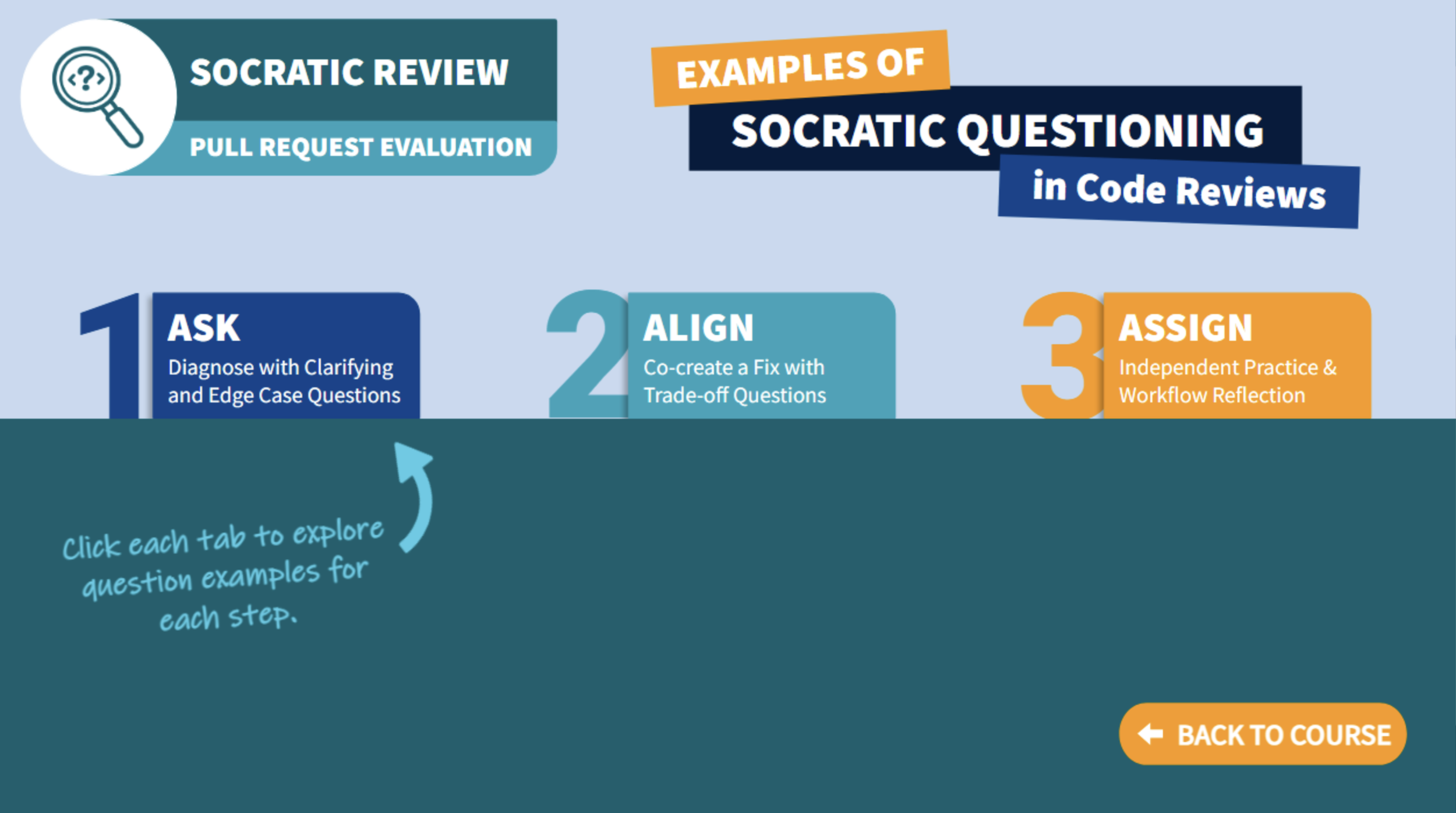
Navigation menu for a question bank that Team Leads can use during the "Socratic Review" part of the ACROSS Framework. View fullsize

Navigation menu for a question bank that Team Leads can use during the "Socratic Review" part of the ACROSS Framework.

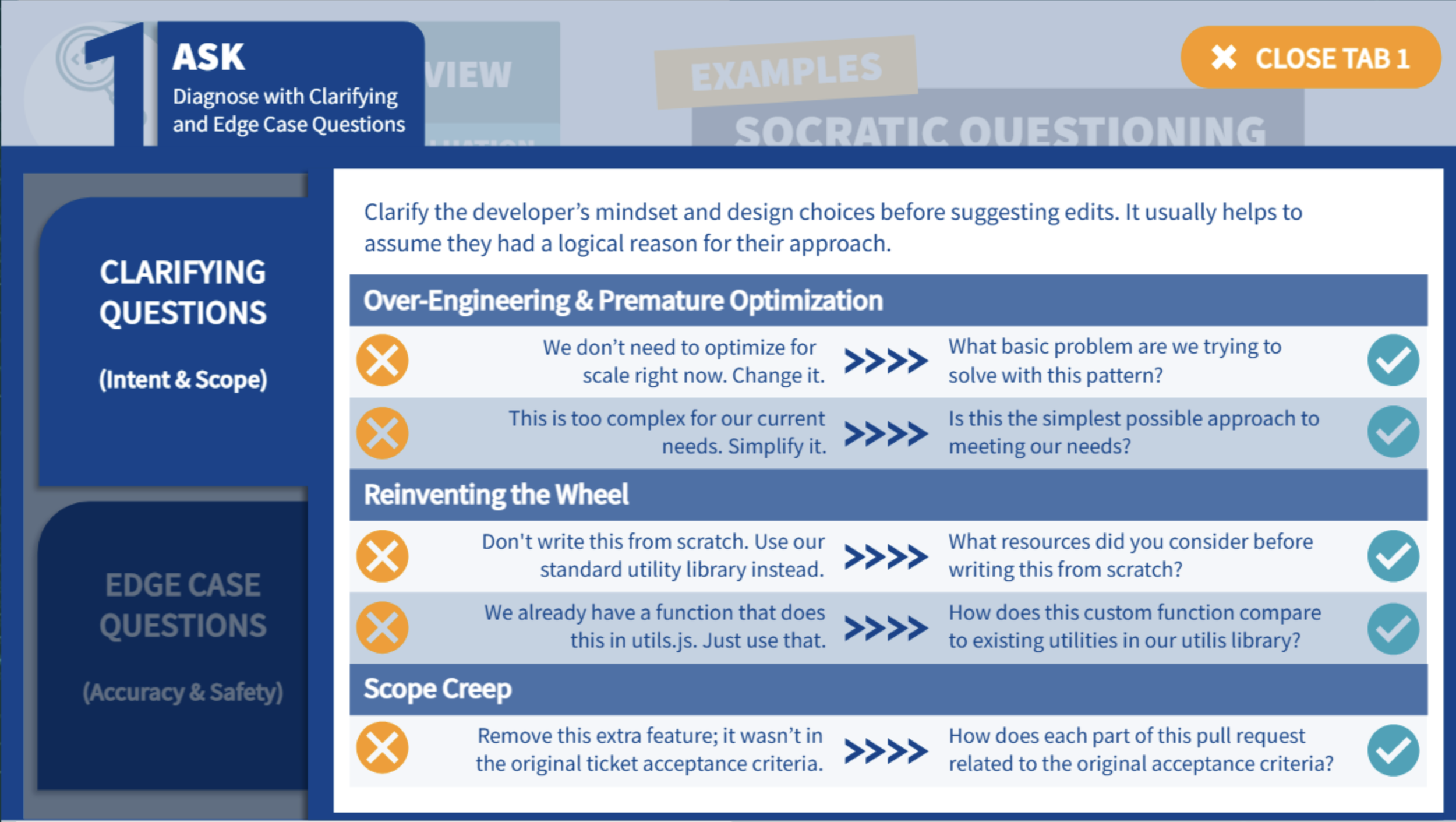
Sample of the question bank that Team Leads can use during the "Socratic Review" part of the ACROSS Framework. View fullsize

Sample of the question bank that Team Leads can use during the "Socratic Review" part of the ACROSS Framework.
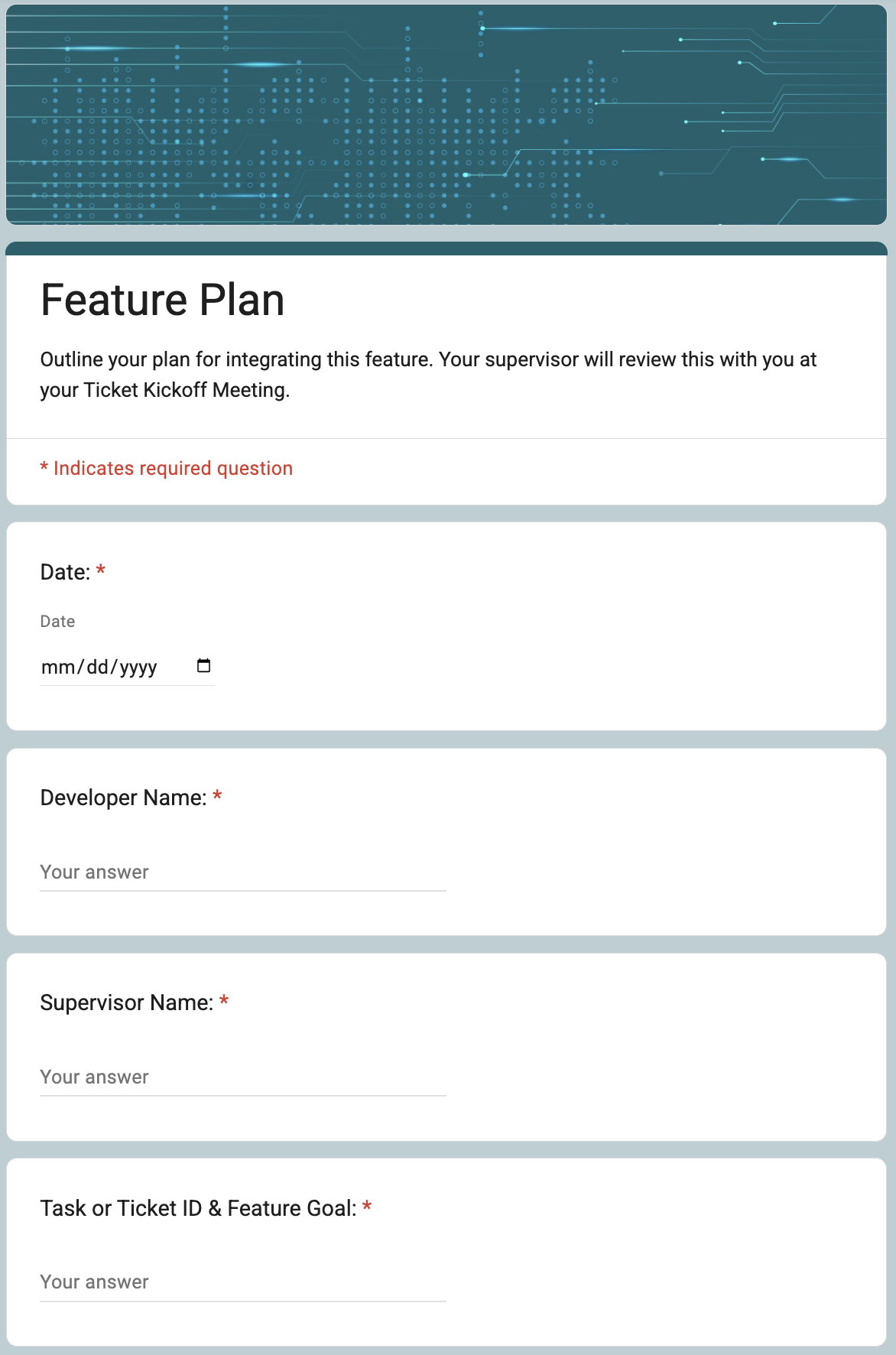
Feature Plan Form.png View fullsize
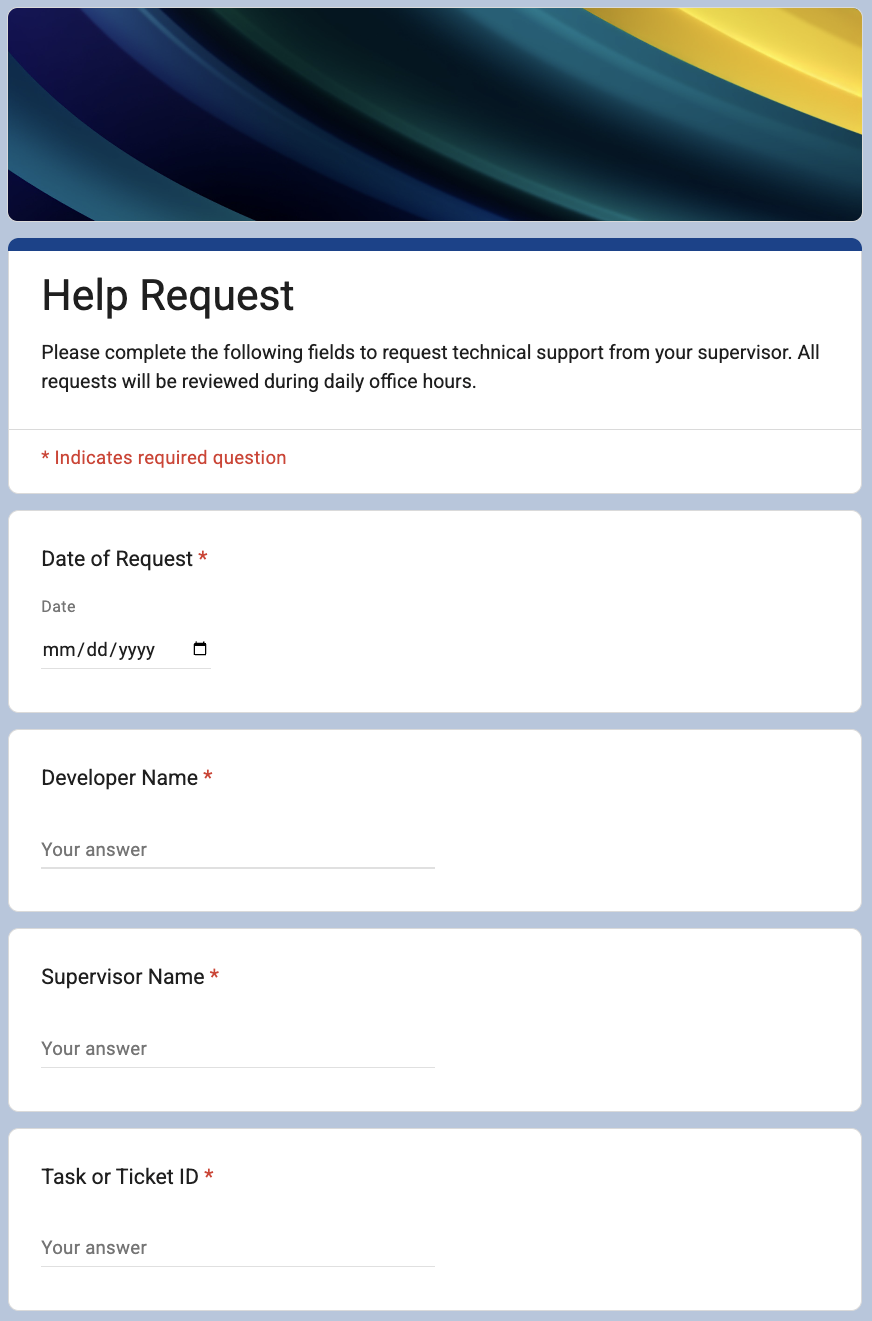
IMG_help-request-form-screen1.png View fullsize
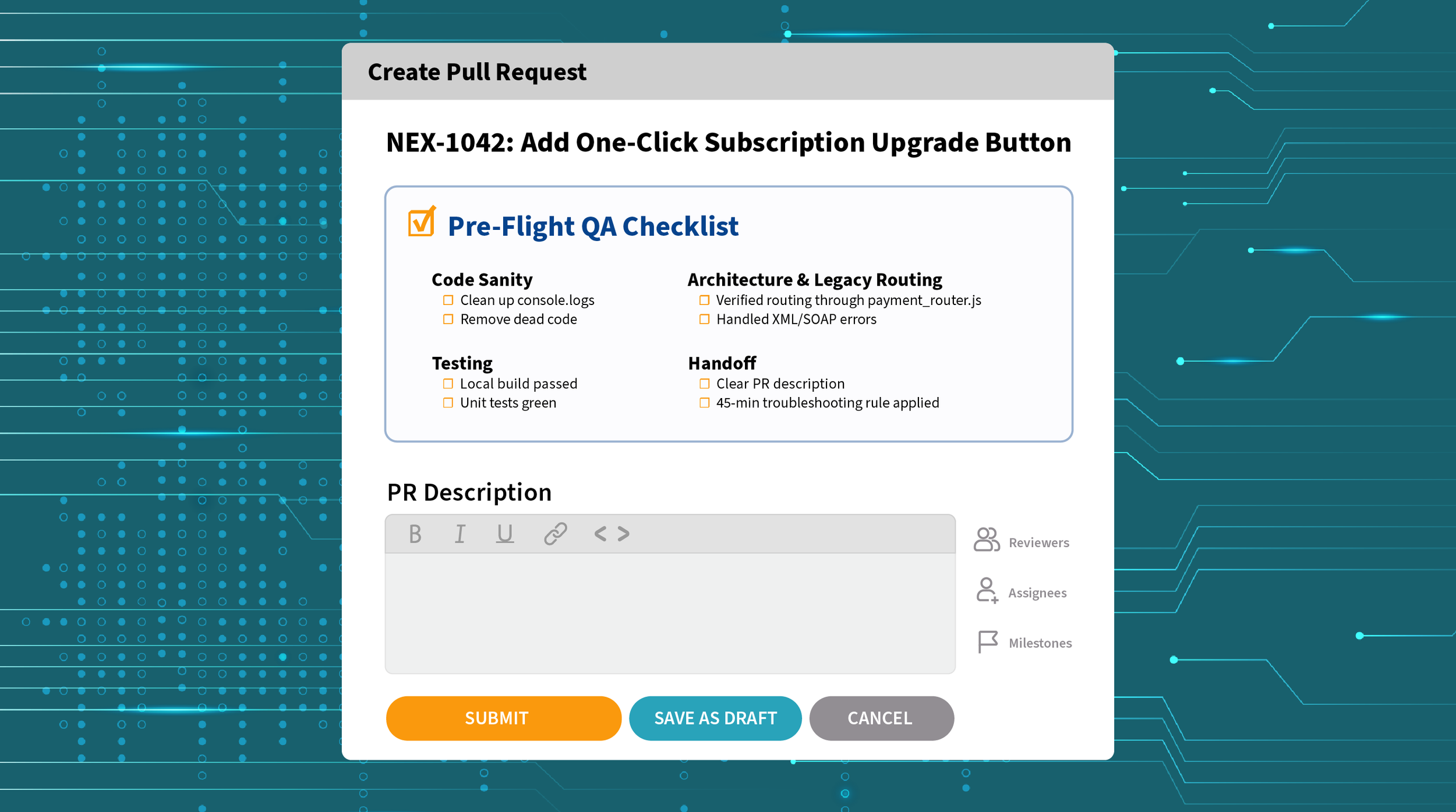
IMG_Pre-Flight-Checklist.webp View fullsize
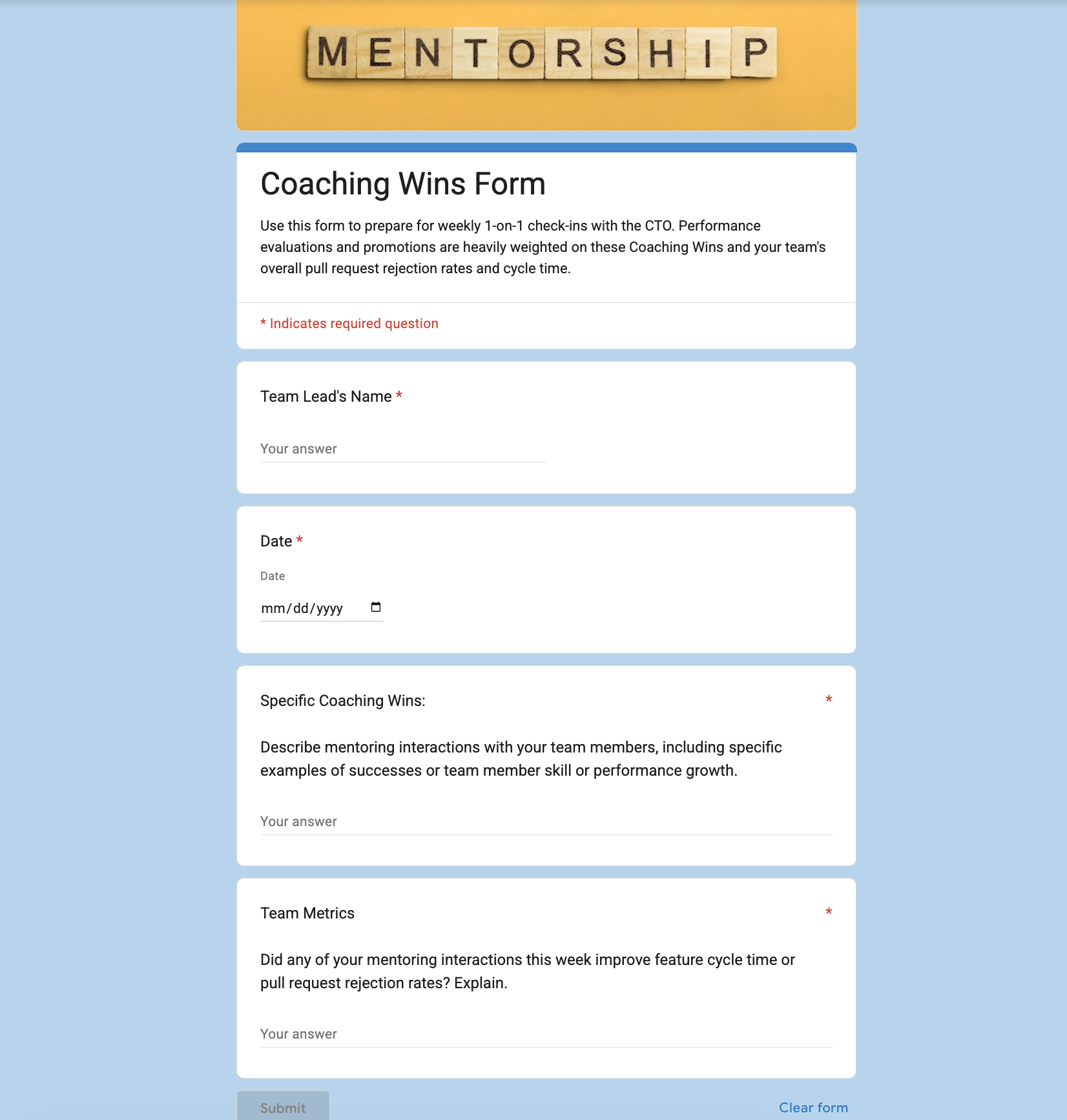
IMG_Coaching-Wins-Form.png View fullsize
Navigation menu for a question bank that Team Leads can use during the "Socratic Review" part of the ACROSS Framework.
Sample of the question bank that Team Leads can use during the "Socratic Review" part of the ACROSS Framework.
Feature Plan Form.png
IMG_help-request-form-screen1.png
IMG_Pre-Flight-Checklist.webp
IMG_Coaching-Wins-Form.png

Looking for an Instructional Designer to join your team? I’m currently accepting new opportunities. Drop me a line below or download my resume.

Resume icon and link
contact icon and link
LinkedIn logo and link